 Open scorecard
Free golf scorecard from Punk Head Pete Golf. Score your rounds, track your handicap, count your snowmen, share the good ones and get your crew on the tee sheet. No app store. No fee.
Get set up
Two minutes, one time. After this it opens like any other app on your phone.
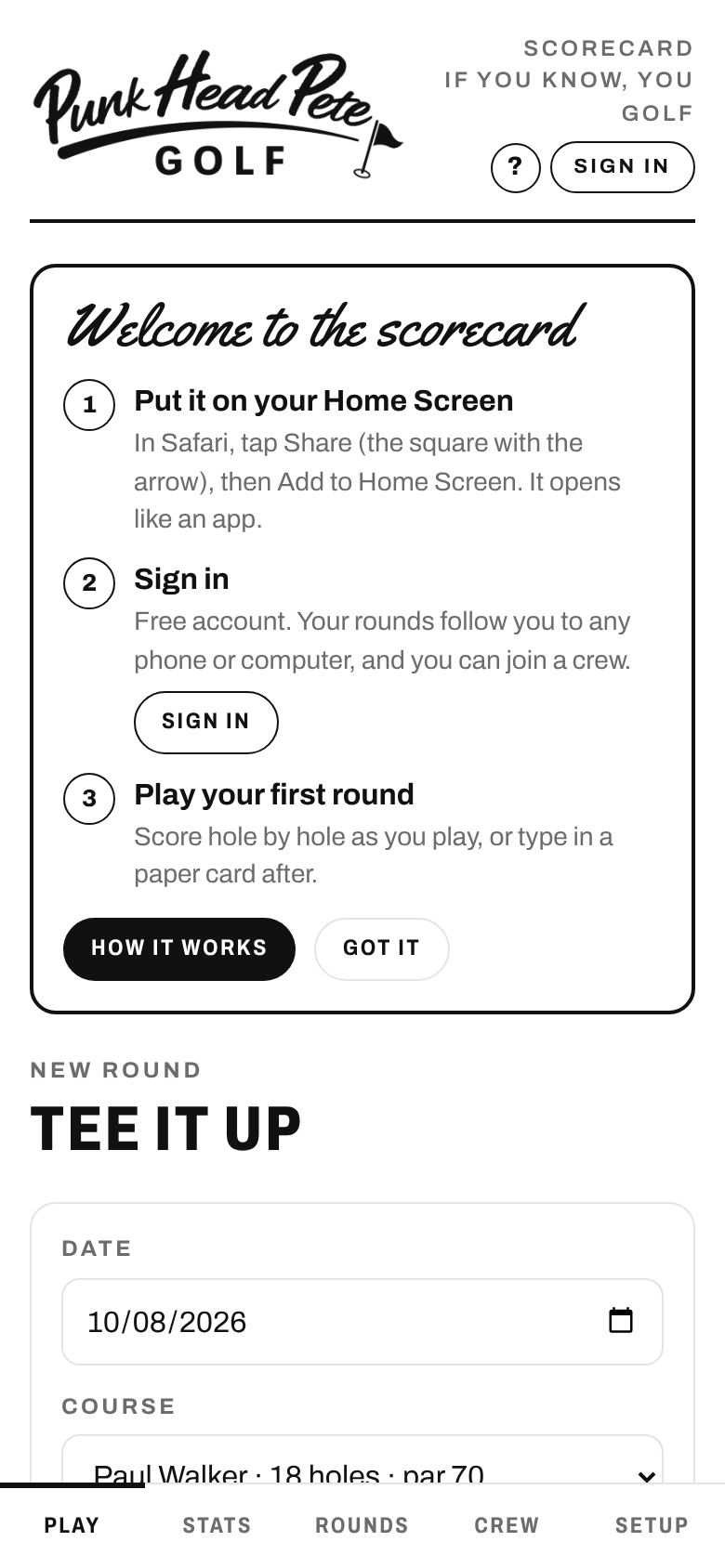
- Put it on your Home Screen. Open scores.punkheadpete.com. On iPhone, use Safari: tap Share (the square with the arrow), then Add to Home Screen. On Android, use Chrome: tap ⋮, then Add to Home screen. Now Pete sits right next to your other apps.
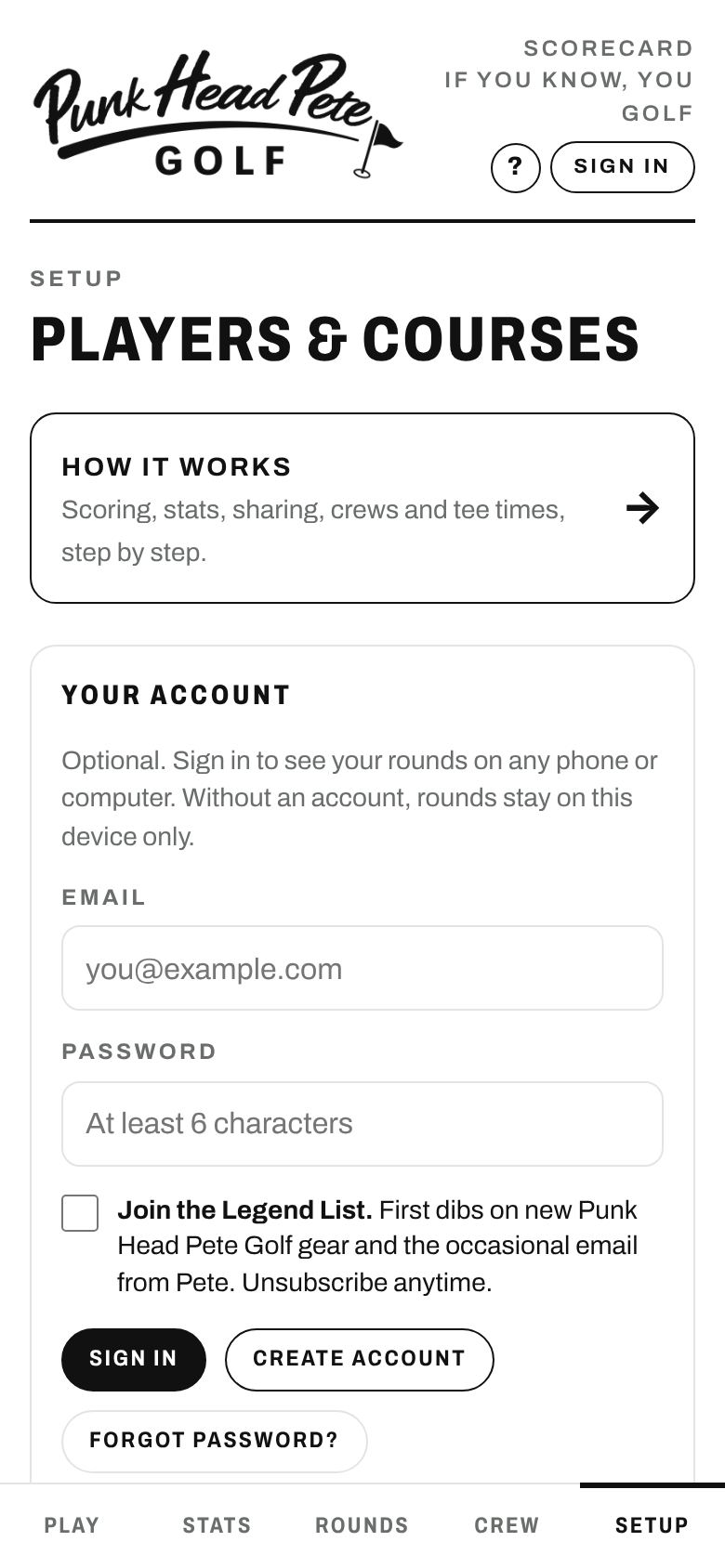
- Open it from the Home Screen icon and sign in. Setup → Your account. First time, type your email, pick a password and tap Create account. It's free, and your rounds follow you to any phone or computer. Check the Legend List box if you want first dibs on Punk Head Pete gear.
- Add your players and courses in Setup. Put your real name on "You". For a course, type the name and the par for each hole (9 or 18). Rating and slope are optional; they sharpen your handicap if you have them from the scorecard.
Score a round
Built for one hand on the cart. Every hole starts at par, so on a par you just hit Next.
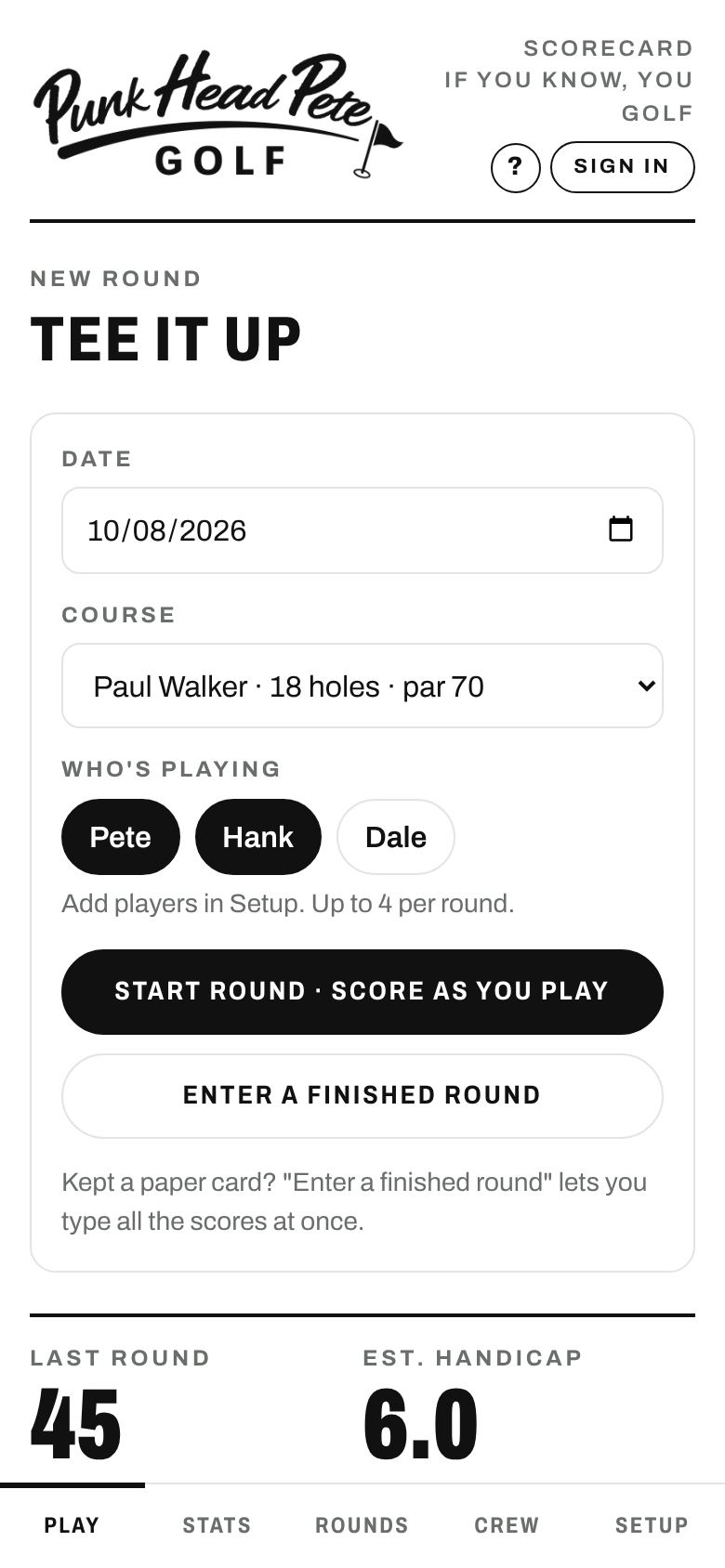
- Play tab → pick the date, the course and who's playing (up to 4) → Start round.
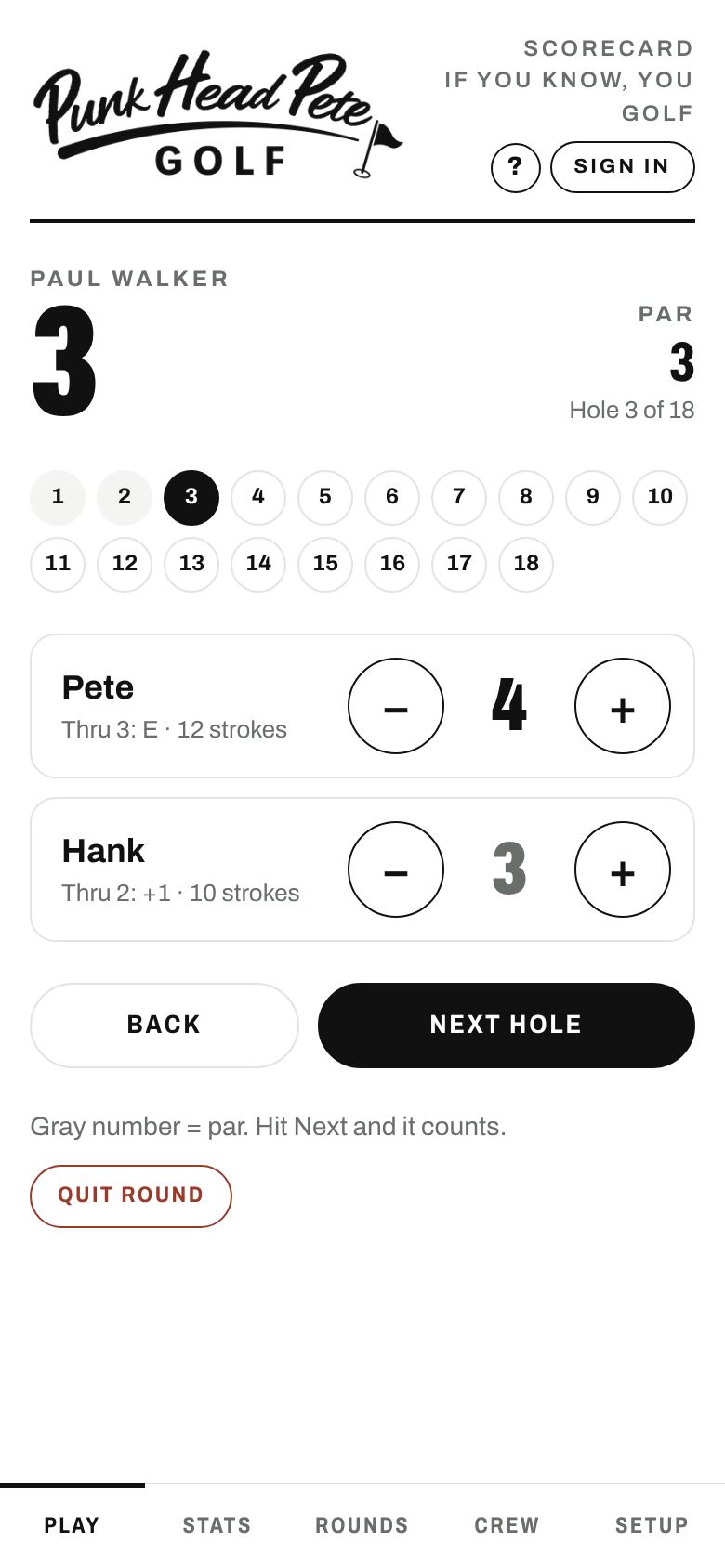
- Each hole starts at par. Tap − or + for each player, then Next hole. The gray number means it's still sitting at par.
- Missed one? Tap any hole number across the top to jump back and fix it.
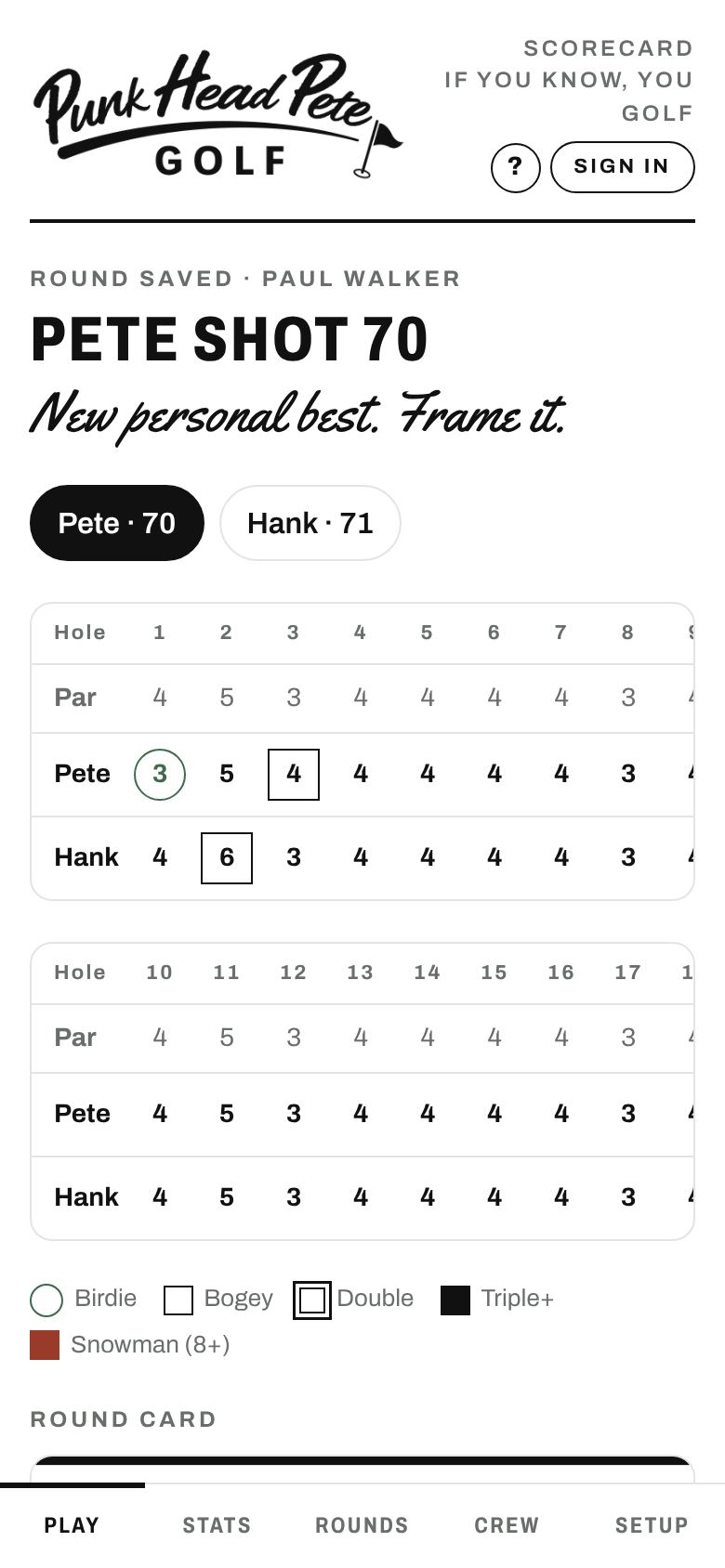
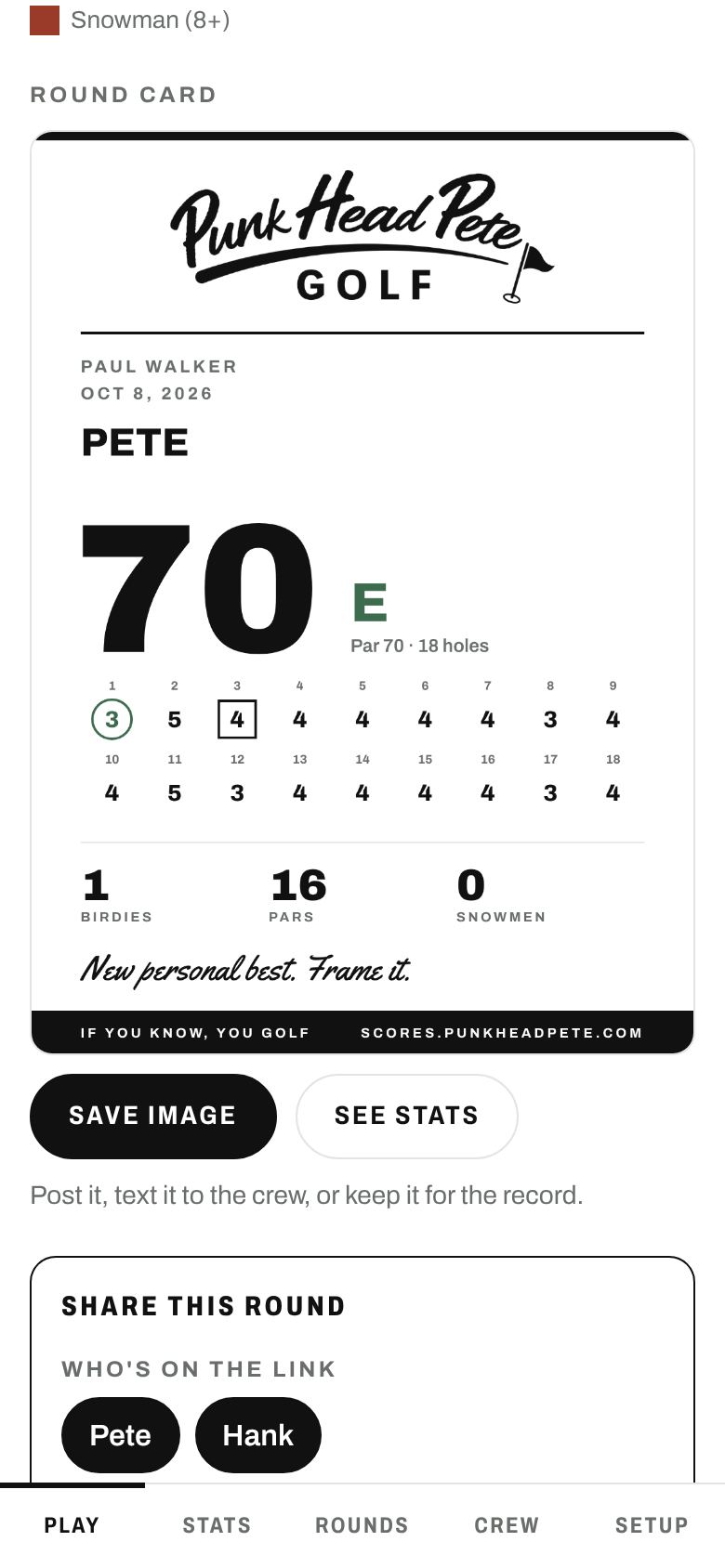
- After the last hole you get the scorecard, Pete's verdict and a round card picture. Save image to keep it or post it.
- No signal on the course? It keeps scoring and uploads when you're back in range.
- Need to bail? Quit round (tap twice) tosses it.
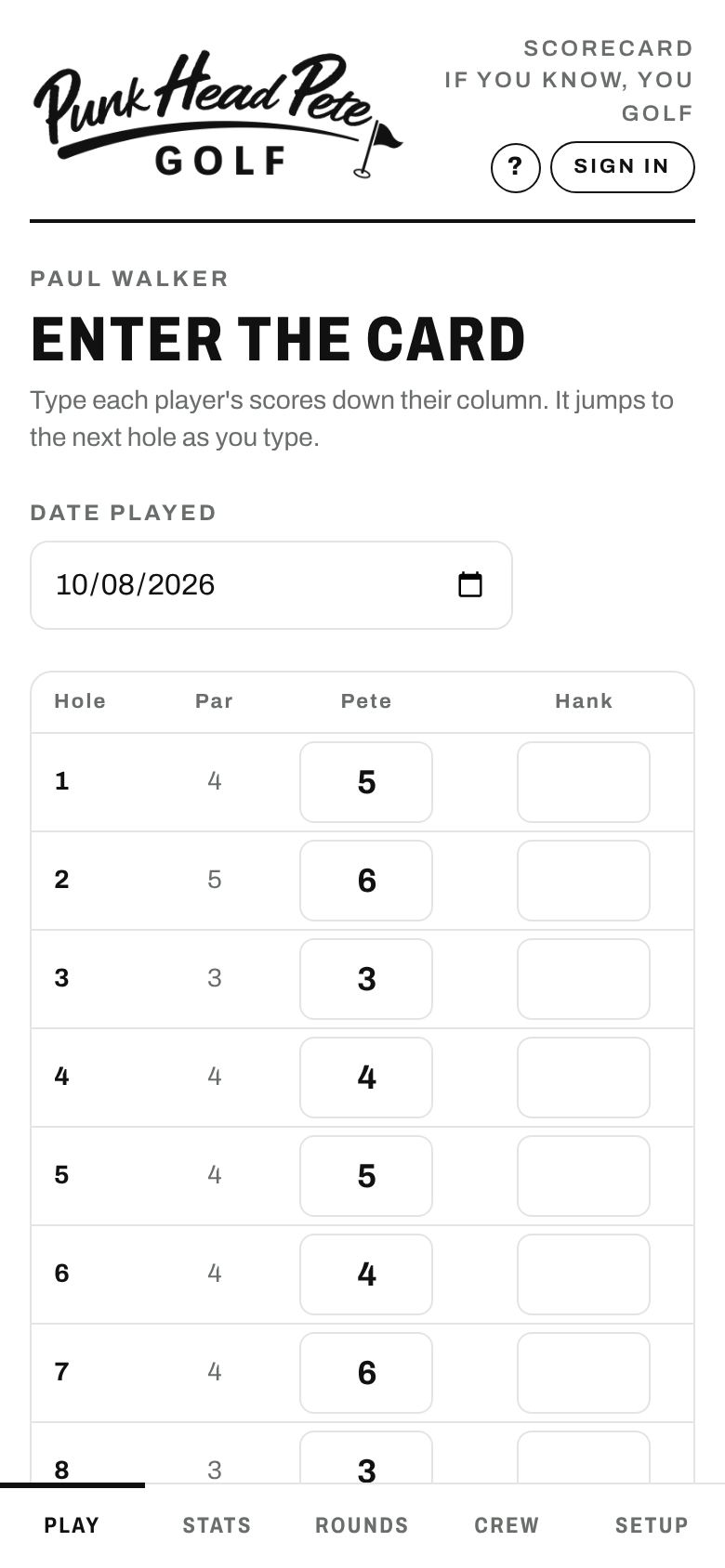
Kept a paper card?
- Play tab → Enter a finished round.
- Set Date played to the day you actually played.
- Type each player's scores down their column. It jumps to the next hole as you type. Save.
- Got a date wrong? Rounds → tap the round → change Date played.
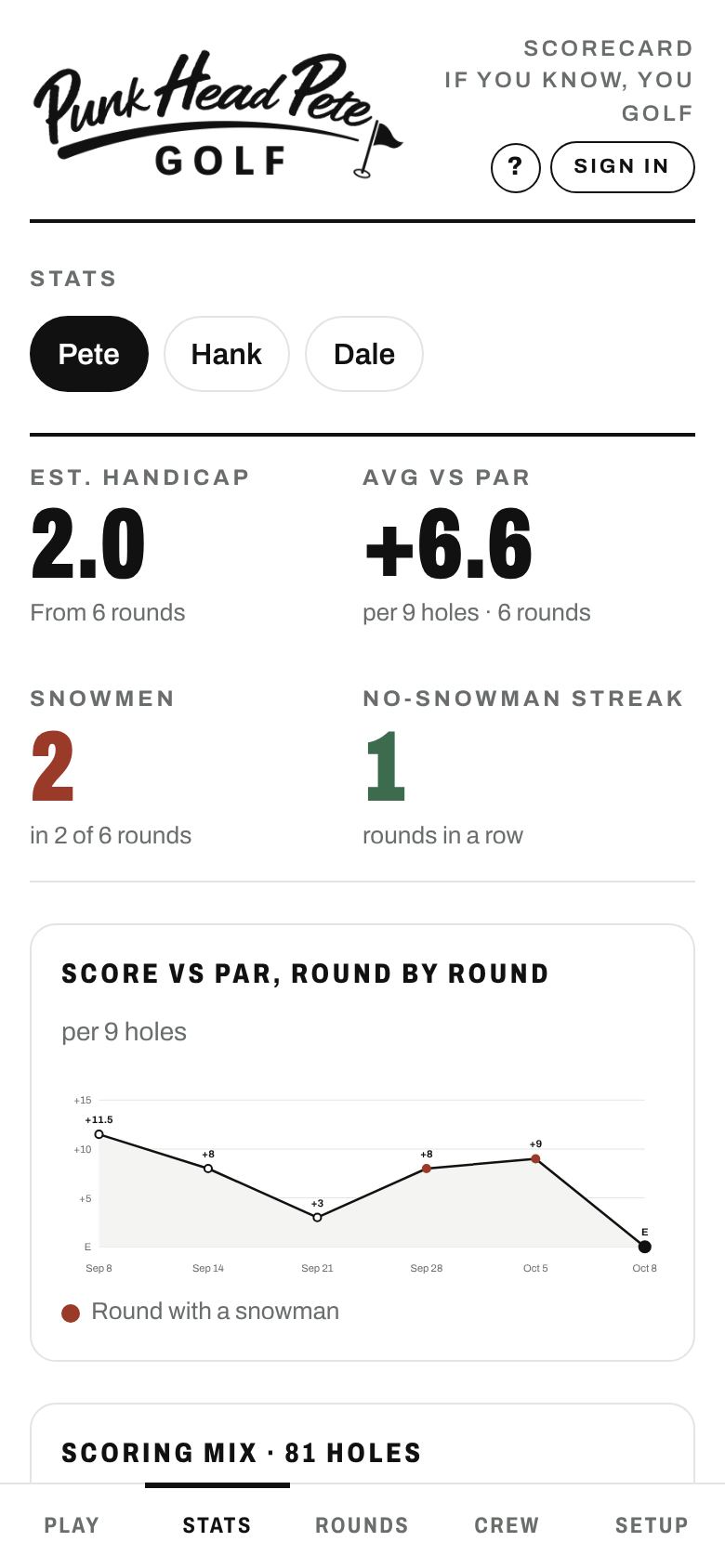
Stats & handicap
- Handicap shows up after 3 rounds and keeps sharpening up to 20. Nine-hole rounds count. It uses the course rating and slope when you've entered them, and par when you haven't.
- Snowman = any hole where you made 8 or more. The streak counts rounds in a row without one.
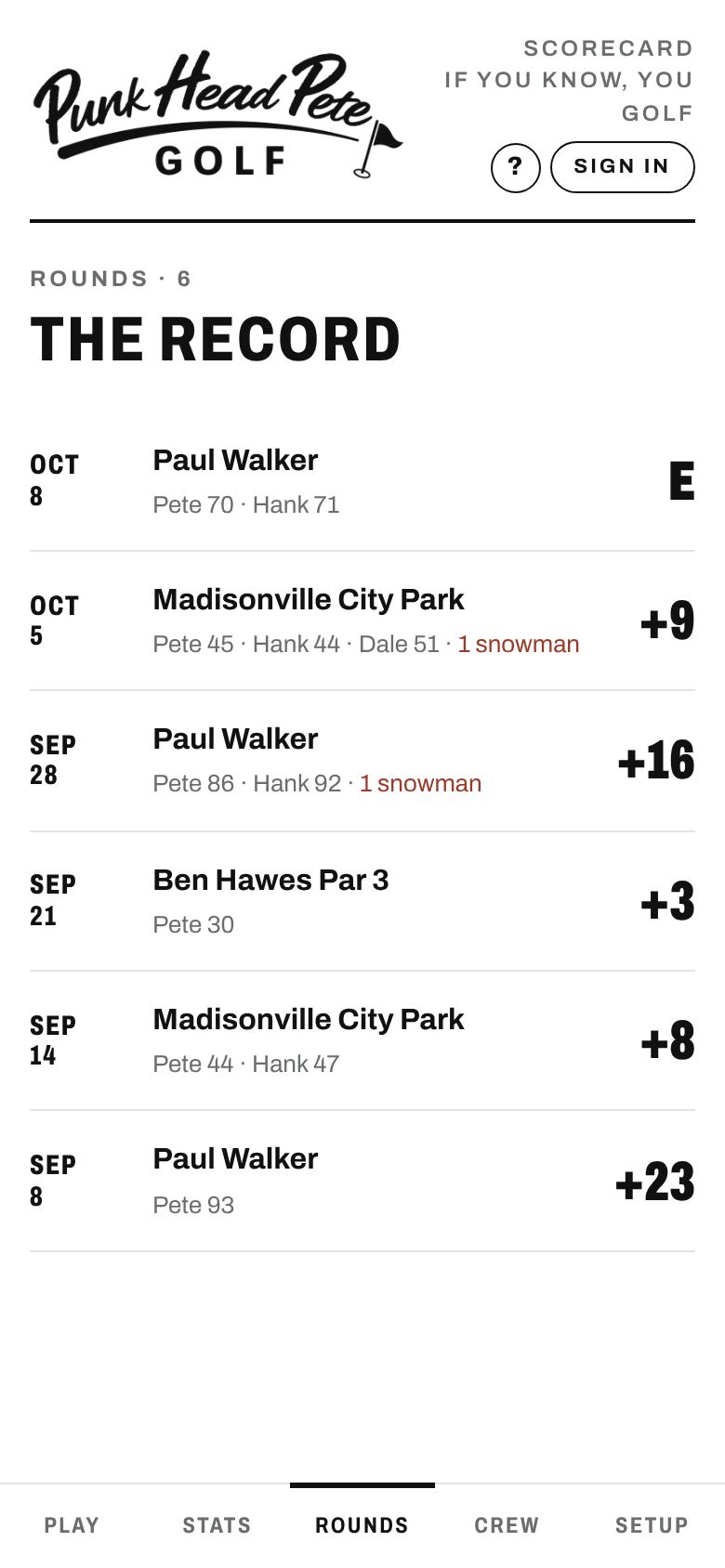
- Rounds tab is the record: every round, tap one for the full card, change the date or delete it.
- Tap a name at the top of Stats to see anybody you play with.
Share a round
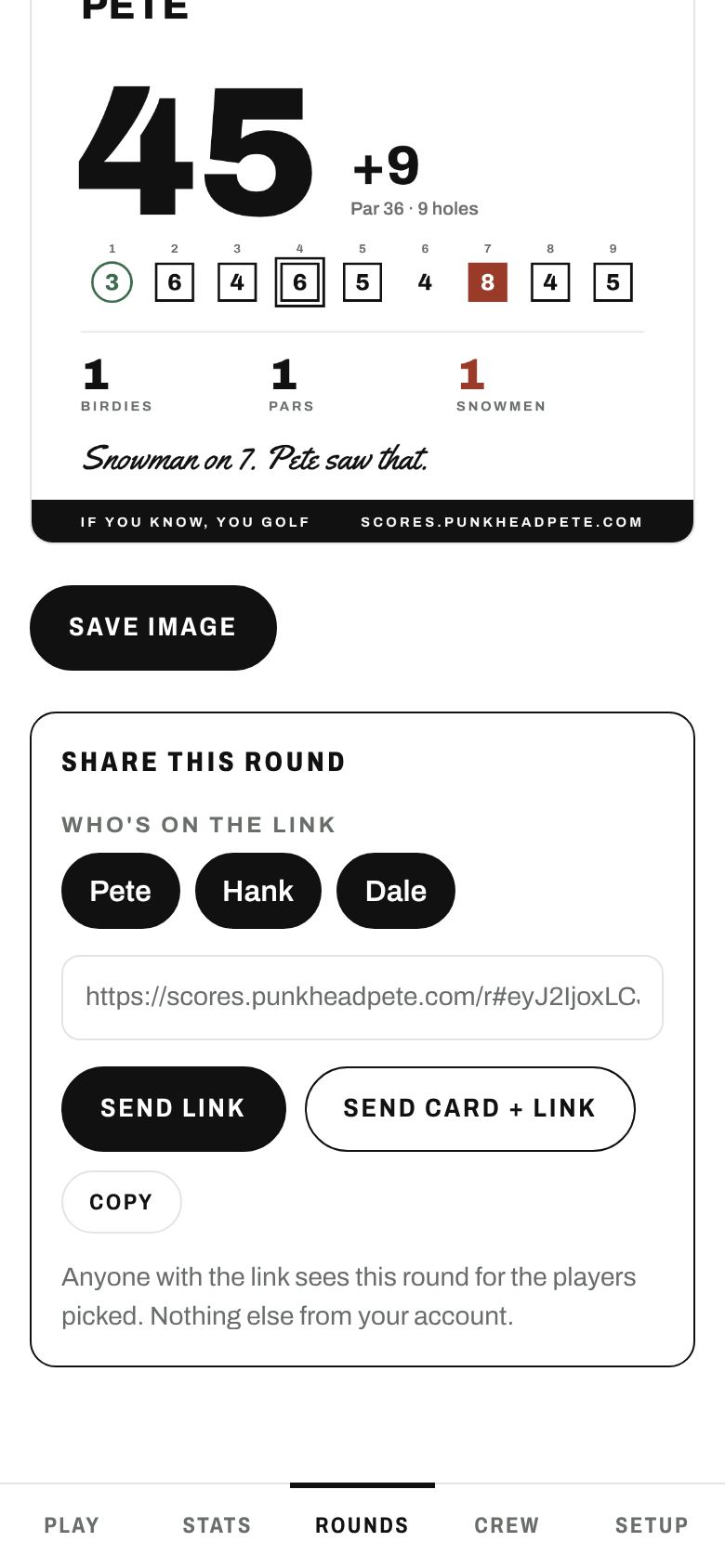
- Open a round (or finish one) and scroll to Share this round.
- Pick who's on the link, then Get share link.
- Send link opens your phone's share menu: text, Facebook, wherever. The preview shows your actual round. Send card + link sends the round card picture too, great for group texts.
- Facebook: use Send link (Facebook drops links that come with a picture). Facebook clears any text that comes with it, so type your own brag.
- Whoever opens it sees the full hole-by-hole card, and a button to get their own free scorecard.
- Changed your mind? Stop sharing kills the link. Signed in, the link is short with a picture preview; not signed in, it's a longer link that still works.
Your crew
Your golf buddies, connected. Everybody needs a free account.
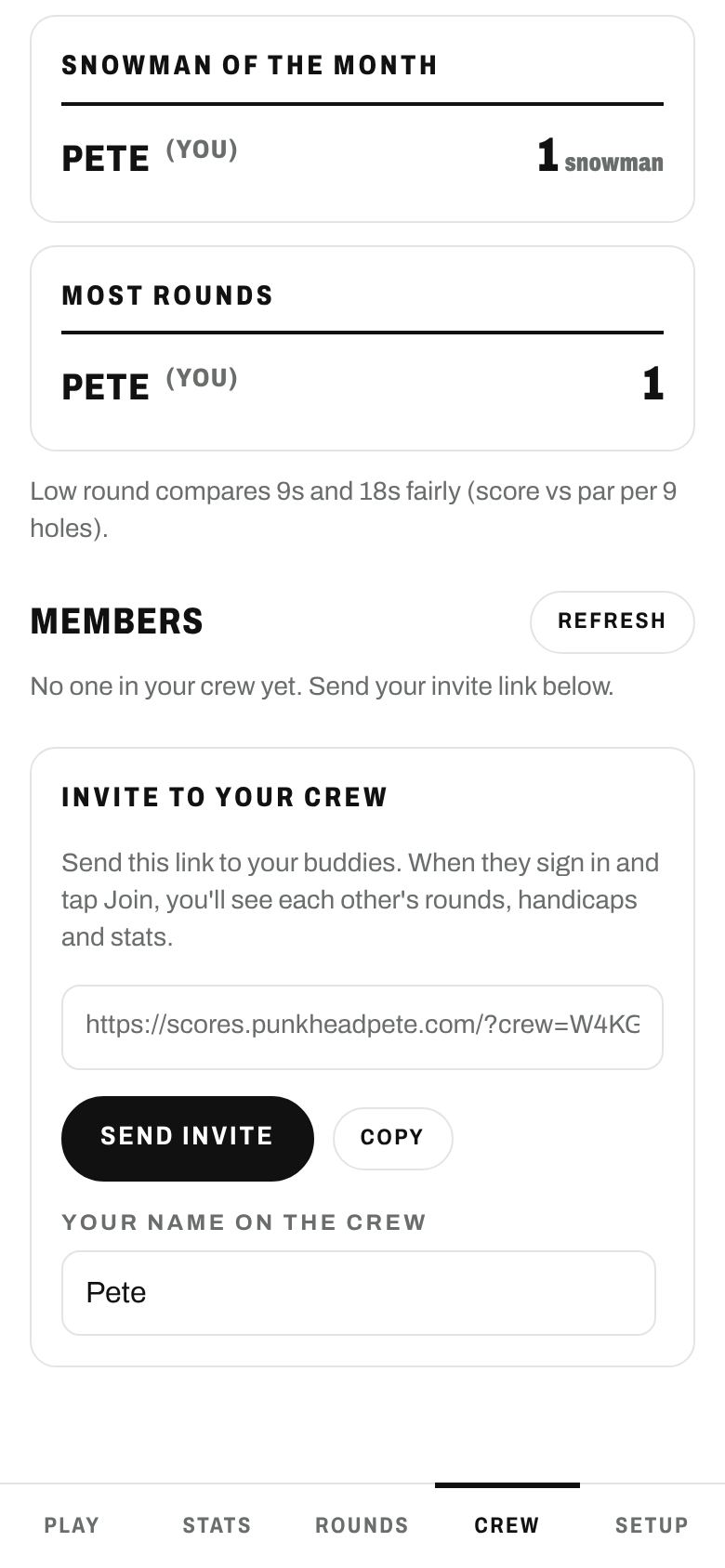
- Crew tab → Get invite link → Send invite. Text it to your buddies.
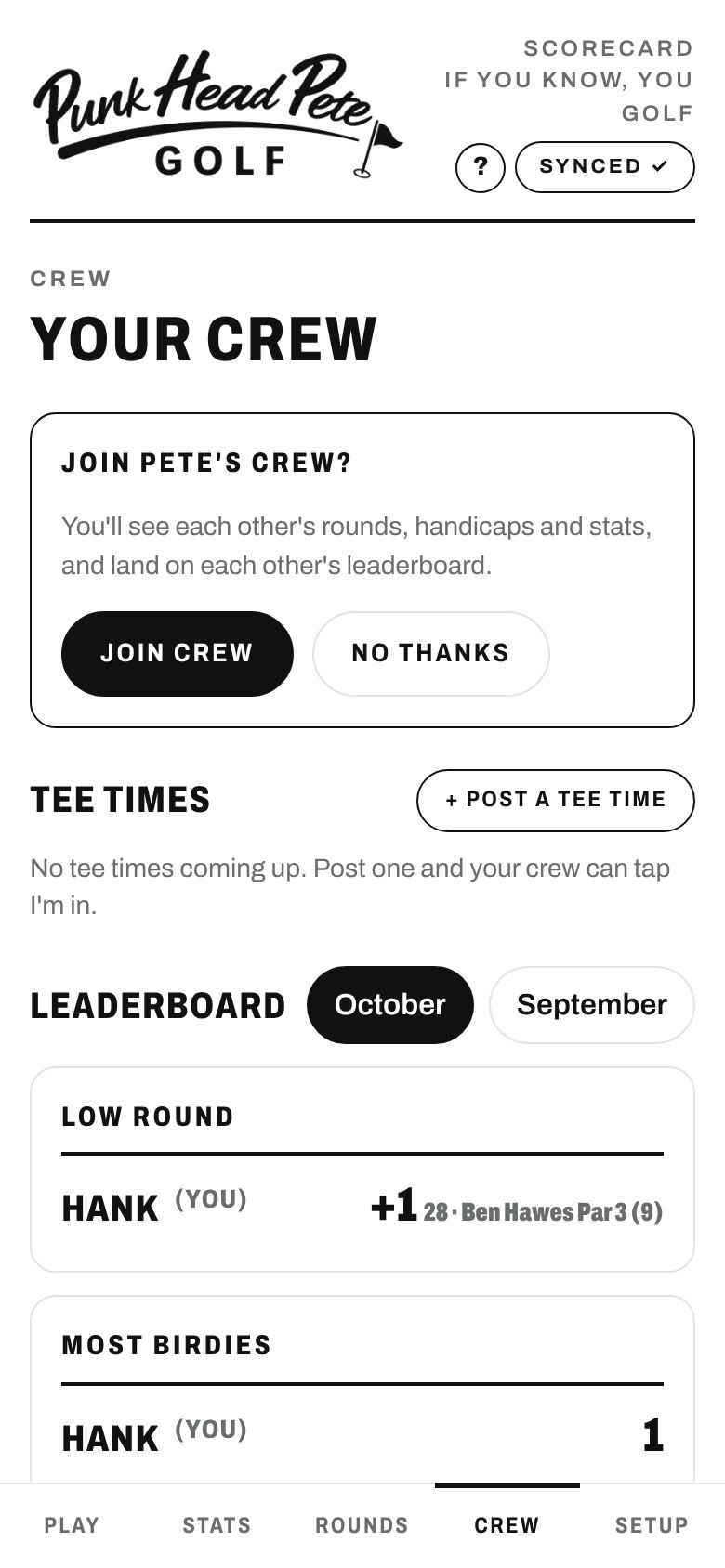
- They tap the link, sign in, and tap Join crew. That's it, both of you are connected.
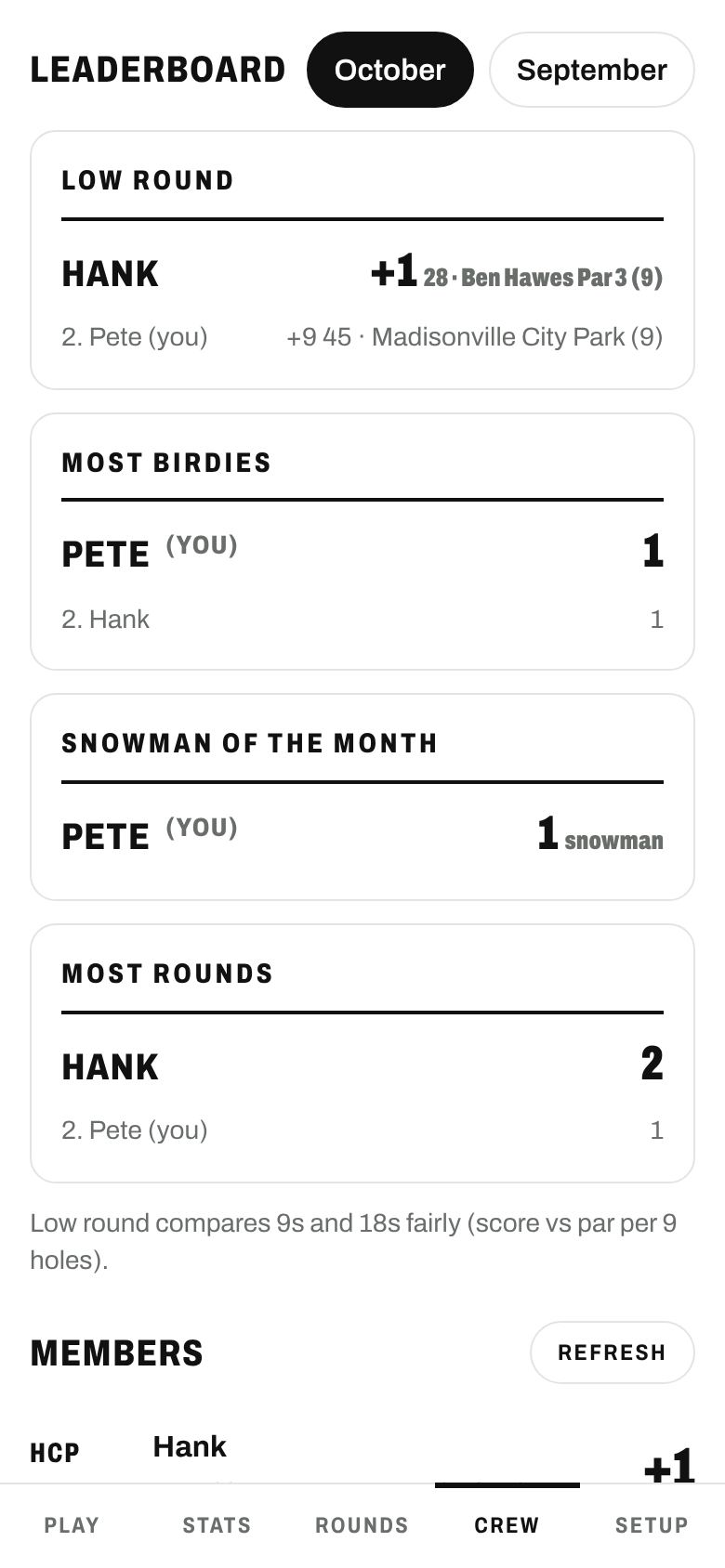
- Now you see each other's handicaps and every round, and you're all on the monthly leaderboard: low round, most birdies, most rounds played and the coveted Snowman of the Month.
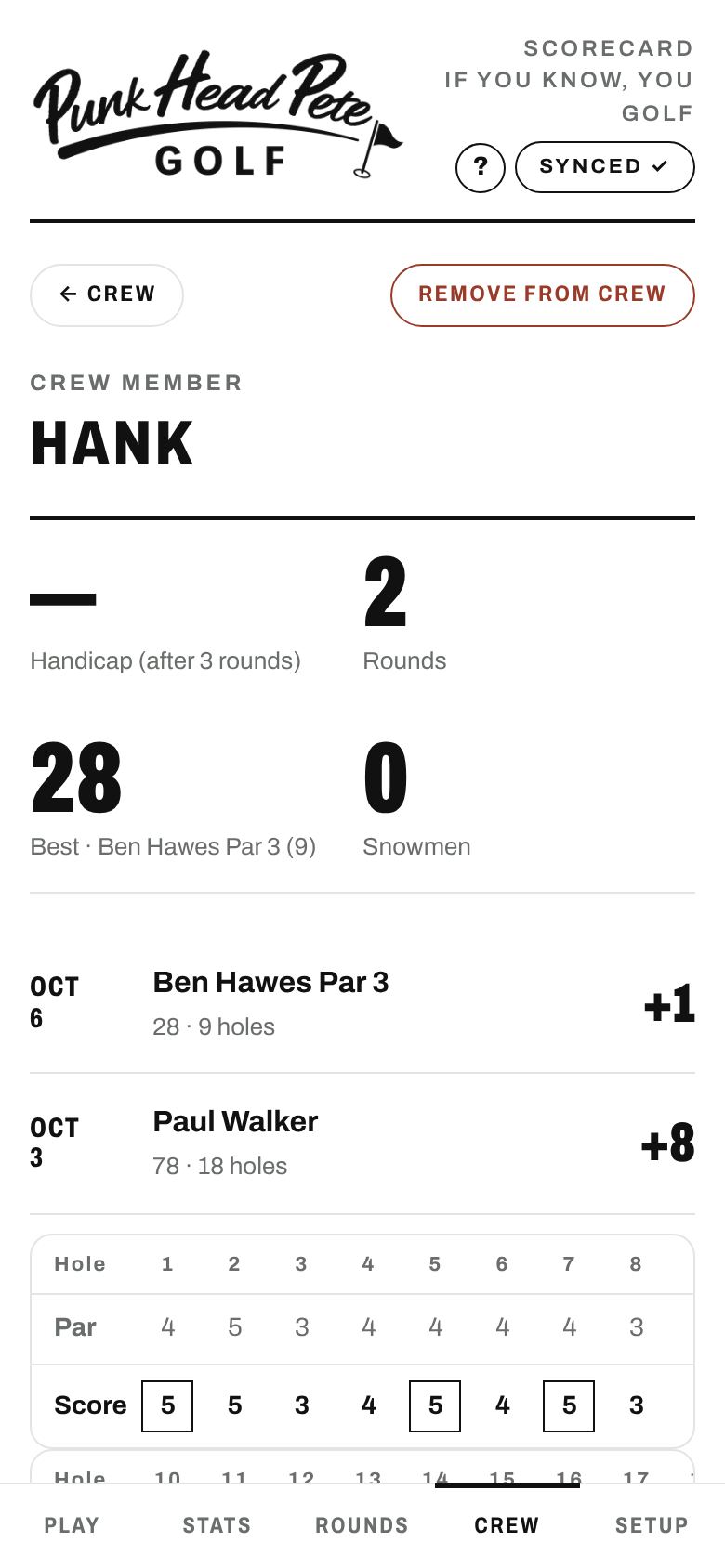
- Tap anybody under Members to see their rounds and scorecards.
- Your crew sees only your own scores, not the other players in your rounds.
- Put your real name in Your name on the crew so they know it's you.
- Remove from crew cuts it off both ways, anytime.
Tee times
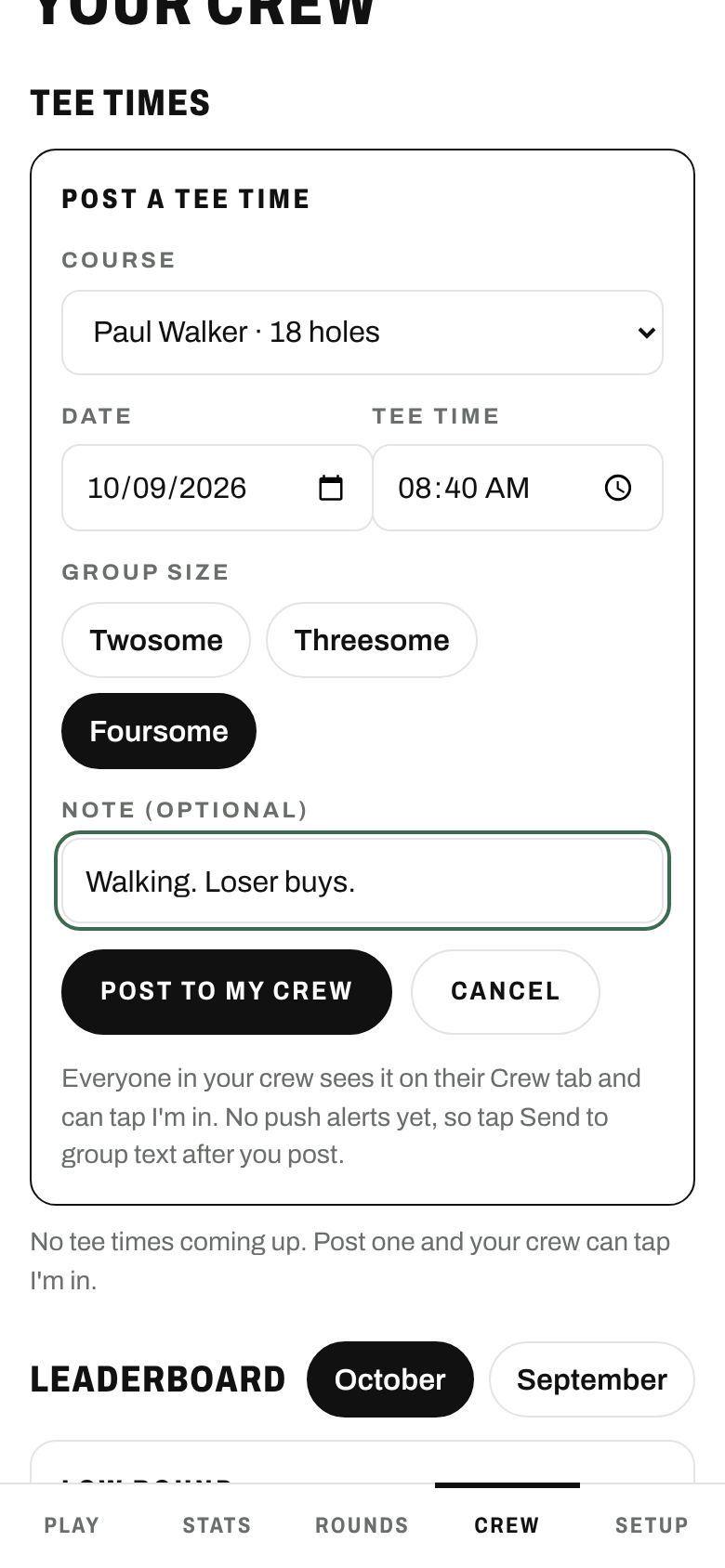
- Crew tab → + Post a tee time. Pick the course, day, time and group size, and add a note if you want ("Walking. Loser buys.").
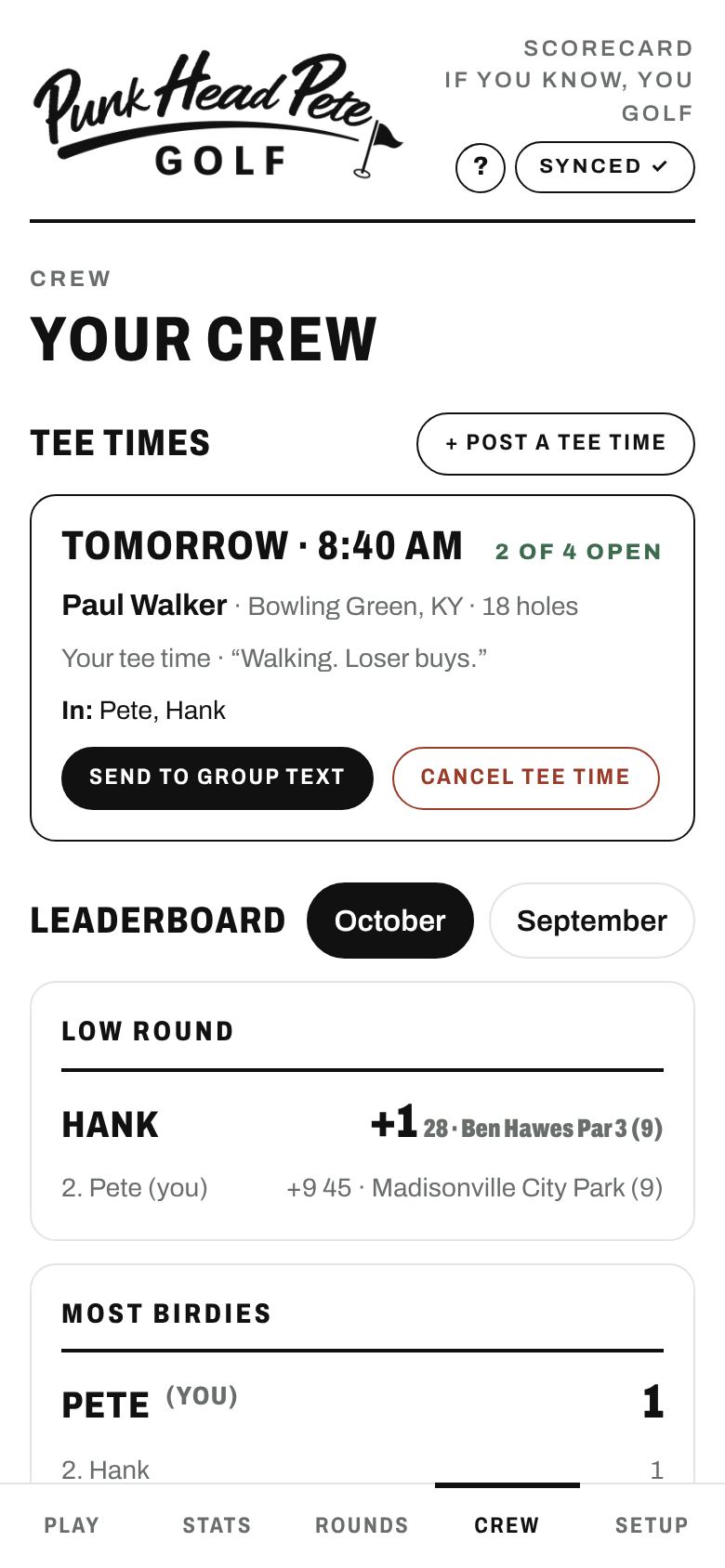
- Your whole crew sees it and taps I'm in or Can't make it. It updates live and counts the open spots.
- There are no phone alerts yet, so tap Send to group text to get the word out.
- On the day, tap Start this round. The course and everybody who's in are already picked. Tap Start round and go.
- Pull down on the Crew tab to refresh.
- Plans changed? The host can cancel it (tap twice).
Fixes & questions
It makes me sign in every time I open it
- Open it from your Home Screen icon, not from a link in a text. Links open Safari, which keeps its own separate login.
- If you added the icon from a Private tab in Safari, delete the icon, switch Safari back to normal tabs, add it again and sign in once.
- Signed up with Google? Google sign-in doesn't work inside Home Screen apps. Type your Gmail address, tap Forgot password?, set a password, and sign in with that. Same account, same rounds.
My Home Screen icon is just a letter
Delete the icon and add it to the Home Screen again from Safari. If it still shows a letter: Settings → Apps → Safari → Advanced → Website Data, delete punkheadpete.com, then add it again and sign back in.
Will I lose my rounds?
Signed in, your rounds are saved to your account and show up on any phone or computer where you sign in. Not signed in, they live only on that one phone, so tap Save backup in Setup now and then, or better yet, sign in.
No signal on the course
Keep scoring. Everything saves on your phone and uploads when you're back in range.
How is my handicap figured?
World Handicap System style: your best differentials out of your last 20 rounds (fewer while you're getting started), using course rating and slope when you've entered them and par when you haven't. Nine-hole rounds count. It's an estimate for bragging rights, not an official GHIN handicap.
What can other people see?
Nothing, unless you share a round or join a crew. The full rundown is on the privacy page.
Still stuck?
Email pete@punkheadpete.com. A real person reads it.